source page: https://www.digitalocean.com/community/tutorials/how-to-add-swap-space-on-ubuntu-22-04
We can see if the system has any configured swap by typing:
sudo swapon --showIf you don’t get back any output, this means your system does not have swap space available currently. You can verify that there is no activate swap using the free utility:
free -h
Since the server in our example has 0.5G of RAM, we will create a 1G file in this guide. Adjust this to meet the needs of your own server:
fallocate -l 1G /swapfileWe can verify that the correct amount of space was reserved by typing:

Make the file only accessible to root by typing:
chmod 600 /swapfileVerify the permissions change by typing:

As you can see, only the root user has the read and write flags enabled. We can now mark the file as swap space by typing:

After marking the file, we can enable the swap file, allowing our system to start using it:
swapon /swapfileVerify that the swap is available:

We can check the output of the free utility again to corroborate out findings:

Our recent changes have enabled the swap file for the current session. However, if we reboot, the server will not retain the swap settings automatically. We can change this by adding the swap file to our /etc/fstab file.
/swapfile swap swap defaults 0 0
The swappiness parameter configures how often your system swaps data out of RAM to the swap space. This is a value between 0 and 100 that represent a percentage. With values close to zero, the kernel will not swap data to the disk unless absolutely necessary. Remember, interactions with the swap file are expensive in that they take a lot longer that interactions with RAM and they can cause a significant reduction in performance.
Values that are closer to 100 will try to put more data into swap in an effort to keep more RAM space free. We can see the current swappiness value by typing:

We can set the swappiness to a different value by using the sysctl command:

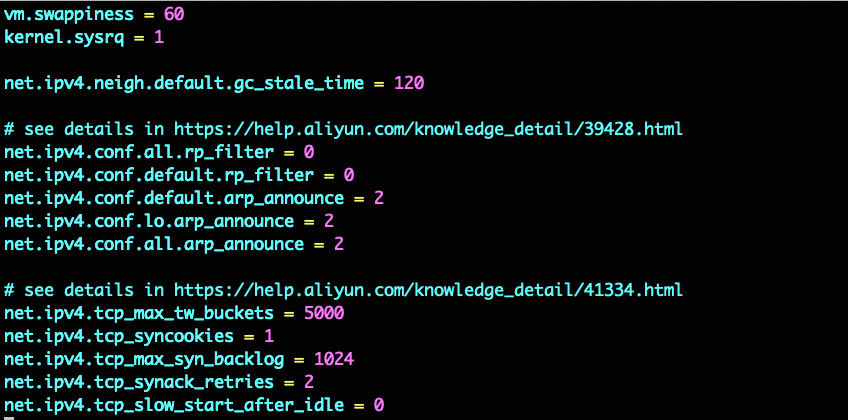
This setting will persist until the next reboot. We can set this value automatically at restart by adding the line to our /etc/sysctl.conf file: